
Publish websites straight from AI chats
Your AI writes the website, but can't put it online? Our free browser extension adds a Publish button to HTML code blocks in ChatGPT, Gemini, Claude, Copilot, and more.
How it works
- 01
Ask your AI for a website
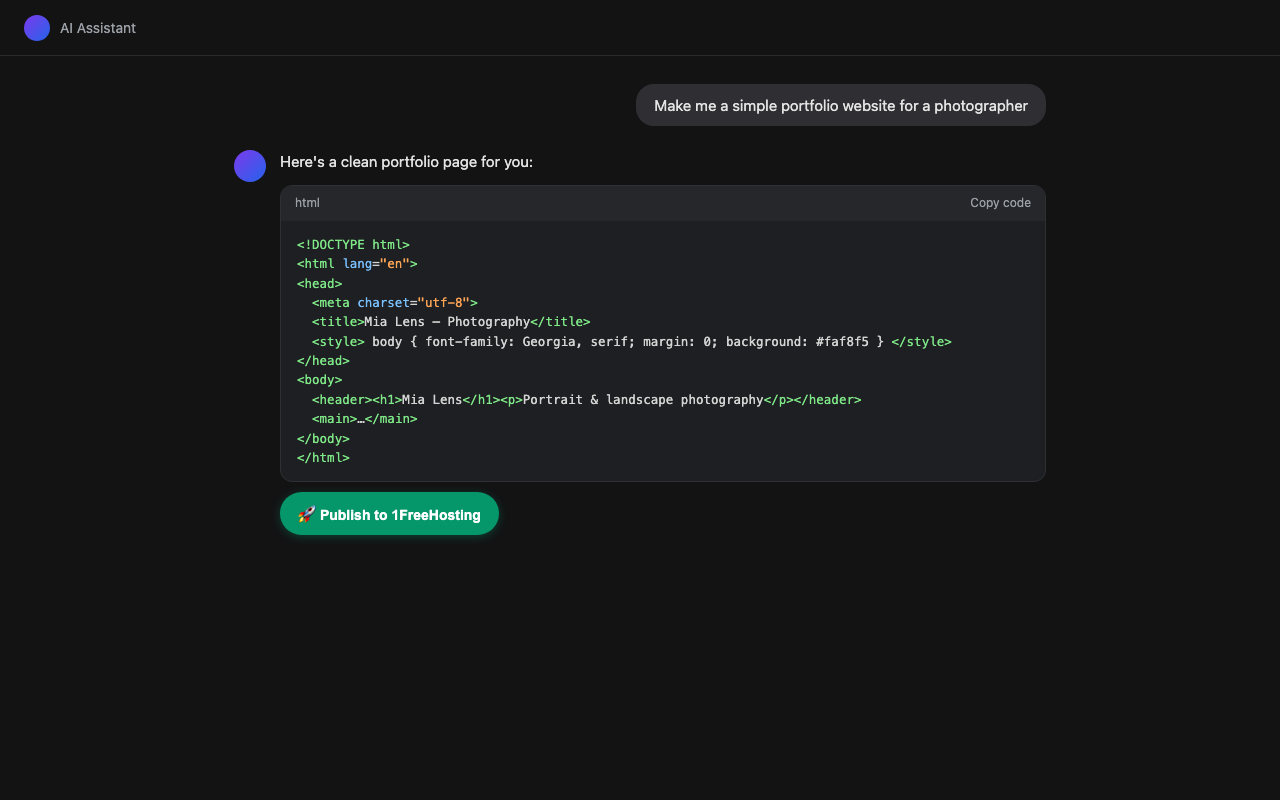
In ChatGPT, Gemini, Claude, or any supported chat: "Make me a personal homepage" — anything that produces an HTML code block.
- 02
Click Publish
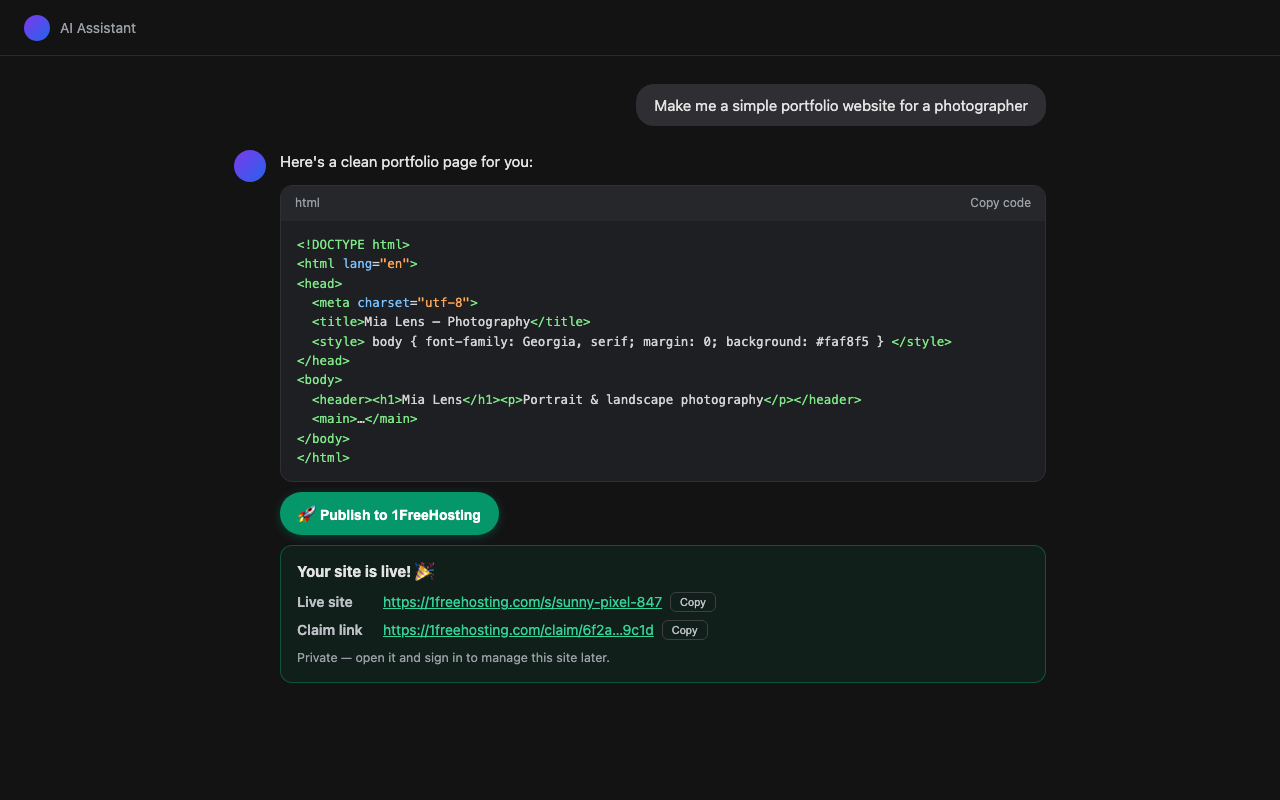
A "🚀 Publish to 1FreeHosting" button appears under every HTML code block. One click uploads it — no terminal, no account.
- 03
Get your links
Your live site address and a private claim link appear right in the chat. Open the claim link to attach the site to your free account.
See it in action
Installing
Install it with one click from the Chrome Web Store (works in Chrome, Edge, Brave, and Arc).
Prefer to install manually?
- Download the extension zip below and unzip it anywhere (you'll get a folder).
- Open chrome://extensions in Chrome, Edge, Brave, or Arc.
- Turn on "Developer mode" (toggle in the top-right corner).
- Click "Load unpacked" and select the unzipped folder. Done!
The extension only runs on AI chat sites, only talks to 1freehosting.com, and uploads a code block only when you click Publish.
Multi-page sites
The Publish button appears automatically on any complete HTML document. For a site with several files, ask your AI to output a deploy block instead — a code block starting with the line 1FH_DEPLOY followed by JSON listing every file. The easiest way: click "Instruct AI to upload my files here" above and paste the instructions into your chat — your AI will know exactly what to do.